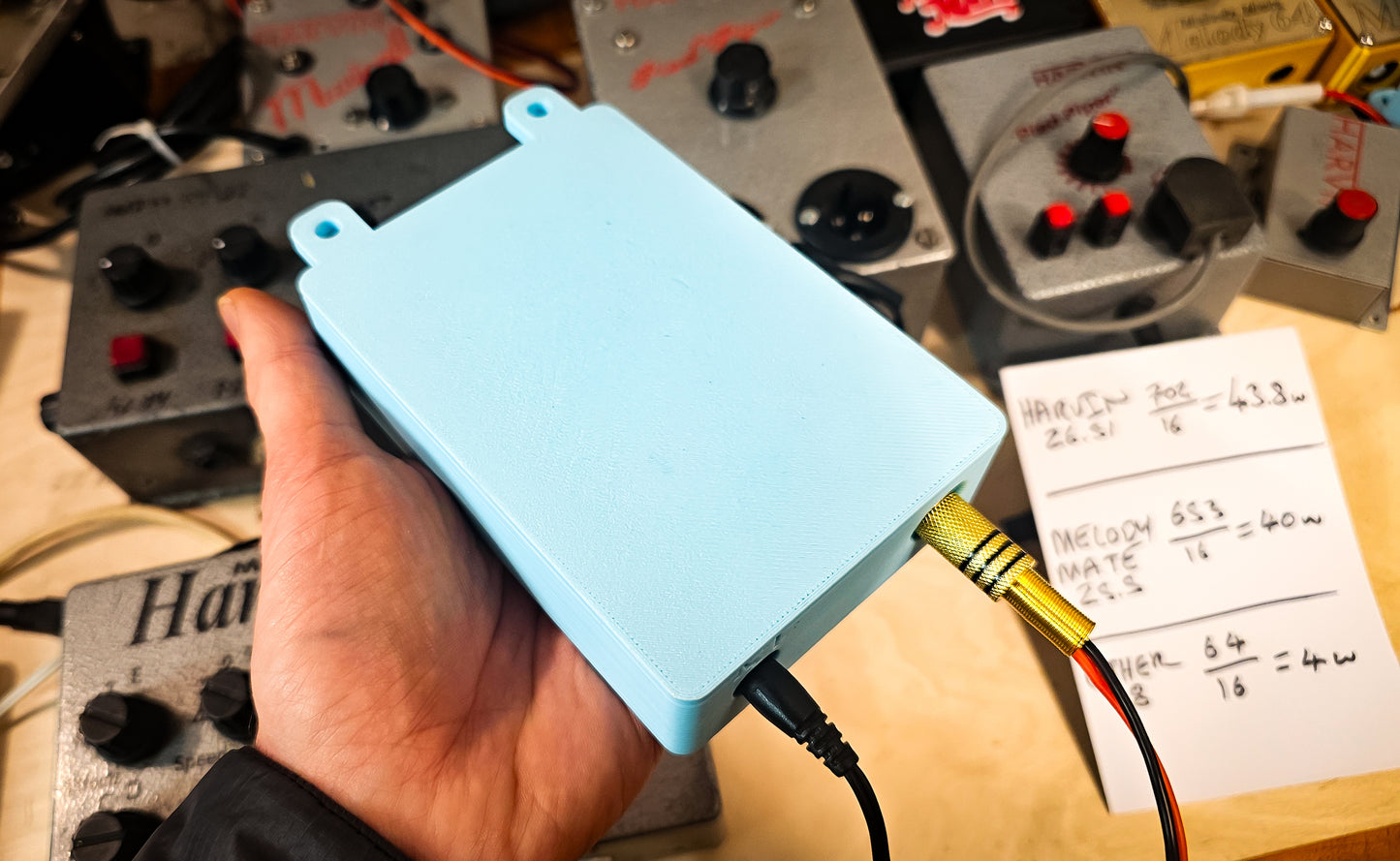
Melody Mate Mini
Melody Mate Mini
Melody Mate Mini is a simplified, compact version of my main Melody Mate system — designed to give you the same core experience in a cleaner, more straightforward package minus a few features. It’s built for quick, confident operation with just one front dial, while still offering the flexibility of a full music library behind the scenes.
Simple operation, just like the classic chime boxes
This operates just like kiddie calls / Harvins / micro miniatures etc - you simply turn the dial and each click plays a different song you have chosen. No messing about, simple to use etc
The key feature is Favourites. You can browse the full library and choose your own shortlist of tunes to save into your favourites bank. Once you’ve done that, the Mini operates exactly like the older-style chime boxes: turn the dial and it plays the next tune in your chosen list.
For example:
-
If you want Greensleeves, Teddy Bear’s Picnic, and Oranges and Lemons in your working rotation, you simply save those as favourites.
-
From then on, each click/selection through the dial will step through your list, in the order you choose by selection.
Your favourites are stored in memory, so they remain saved even when the unit is switched off and back on. And importantly: even though you’re running a simple favourites bank day-to-day, the full 400+ track background library is always still there whenever you need it — meaning you can add or remove tunes at any time, using the same single dial.
At its heart, Melody Mate Mini includes an onboard amplifier with 60W output, and it is fully fused for protection and peace of mind. The unit comes pre-loaded with 400+ classic ice cream chimes and background tracks, giving you an enormous “background” library ready to go from day one.
Volume control (also via the dial)
Volume is adjusted using the same front dial as well — no extra switches, no fiddly menus. It’s intentionally designed to stay simple and fast to operate.
Support, guides, and warranty
Full operating instructions are available on my YouTube channel, and I’m always happy to support customers via message, email, or phone call if you need a hand setting anything up or getting the best out of the unit.
Every Melody Mate Mini includes a 24-month guarantee.
NOTE - i do have these in stock sometimes but if i have sold a few then these are made to order so allow at least 1 week or contact me before buying
Melody Mate Mini User Manual
1) What this product does
This device is a compact SD-card MP3 player with:
-
A 0.42" OLED screen (72×40 pixels)
-
A rotary encoder (turn + press) for control
-
Favourites (quick access list)
-
A file browser (navigate folders on the SD card)
-
A Settings menu:
-
Startup Play (auto-play last track on power-up)
-
Repeat (repeat the current track)
-
Random (shuffle favourites)
-
Audio is output over I2S to a PCM5102A DAC, and a relay-controlled mute is used to prevent pops/thumps when starting/stopping.
2) Controls overview
Rotary Encoder (main control)
-
Turn left/right: move selection / change value
-
Press and release (short click): select / play / stop (context dependent)
-
Press and hold + turn: opens Volume mode (from anywhere)
Press-and-hold actions (Favourites Home screen only)
While on the main favourites screen:
-
Hold ~2 seconds, then release (without turning): Remove the currently selected favourite
-
Hold ~5 seconds, then release (without turning): Enter the Browser/Settings menu (SD root)
Important: If you turn the knob while holding, it becomes a volume adjustment gesture and the long-hold actions (remove/settings) won’t trigger.
3) Power-up behaviour
When powered on:
-
Screen shows “Init…”
-
Device mounts the SD card
-
Device opens the Favourites Home screen
If Startup Play = On, and a previously played track still exists on the SD card, it will automatically start playing that last track.
If the SD card fails to mount, the screen shows “SD FAIL” and playback/browsing will not work until the SD issue is resolved.
4) The main screen (Favourites Home)
This is the default screen and daily “home” of the device.
What you see
-
A single large, bold track name (from your favourites list)
-
If the name is too long, it scrolls smoothly
-
When a new track begins playing, the screen briefly inverts/“flashes” as a visual cue
How to use it
A) Browse favourites
-
Turn encoder to move through your favourite tracks
(wrap-around is enabled here: after the last favourite it returns to the first)
B) Auto-play on selection
-
When you stop on a different favourite (just by turning), the device will auto-play it after ~1 second.
C) Play/Stop manually
-
Short click the encoder:
-
If the selected favourite is currently playing → Stop
-
Otherwise → Play the selected favourite
-
D) Remove a favourite (quick remove)
-
Press and hold for ~2 seconds, then release (do not turn while holding)
-
The screen will show an on-screen overlay “REMOVE” while you’re holding long enough
-
On release, the selected favourite is removed
E) Enter browser/settings menu
-
Press and hold for ~5 seconds, then release (do not turn while holding)
-
The screen will show “SETTINGS” overlay once you’ve held long enough
-
On release, you are taken into the SD browser (root) where you can access folders, favourites, and settings
5) Volume control (press-and-turn gesture)
You can adjust volume from any screen:
How to change volume
-
Press and hold the encoder button
-
Turn the encoder while still holding
→ the device switches to a Volume screen instantly -
Keep turning to adjust volume (0–30)
How to save and exit volume
-
Release the encoder button
-
Volume is saved automatically
-
A “Volume saved” message appears briefly
-
The device returns to the previous screen type (favourites or list)
6) SD Browser (file & folder navigation)
You enter the browser by doing the 5-second hold from the favourites home screen.
What you see
A 4-line list. The highlighted line is your selection.
At the top and bottom of lists you will see BACK to return.
In the SD card root (/) you will also see two special entries:
-
Favourites
-
Settings
Navigation
-
Turn encoder: move selection up/down
(no wrap-around here: it stops at the top/bottom) -
Short click: open/select the highlighted line
Opening folders
-
Highlight a folder → click to enter it
Going back
-
Highlight BACK → click to go back one level
7) Adding/removing favourites from the browser
In the SD browser, MP3 files appear in the list.
Favourite marker
-
A track with a leading
*is a favourite -
A track with a leading blank/space is not a favourite
Toggle favourite status
-
Highlight an MP3 track
-
Short click
-
The device shows a toast:
-
“Added To Favourites” or “Removed From Favourites”
-
-
The track list updates the marker (
*/ blank)
Note: Clicking an MP3 in the browser does not start playback — it toggles favourite status.
8) Settings menu
Open Settings from the SD root list:
-
Enter browser (5s hold from favourites)
-
In the SD root list, choose Settings
Settings available
-
Startup Play: On/Off
If On, the last-played track resumes automatically on power-up (if still present on SD) -
Repeat: On/Off
If On, when a track ends it automatically restarts the same track -
Random: On/Off
If On, when a track ends it selects a random next track from favourites
Important rules
-
Repeat and Random are mutually exclusive
-
Turning Repeat On will switch Random Off
-
Turning Random On will switch Repeat Off
-
How to change a setting
-
Turn to highlight a setting
-
Click to toggle it
-
The device briefly shows a confirmation toast
Leaving settings
-
Select BACK (top or bottom) → click
9) Playback behaviour (Repeat / Random / Normal)
When a track finishes:
-
If Repeat = On:
It restarts the same track automatically. -
If Random = On:
It chooses another track from favourites at random (tries to avoid immediately repeating the same track if possible). -
If Repeat = Off and Random = Off:
Playback stops at the end of the track.
10) Screen messages you may see
-
Init…
Power-up, system is starting -
SD FAIL
SD card could not be mounted (card missing, wiring issue, formatting problem) -
Playback Error / Initial start
The player failed to start a selected track -
Playback Error / Auto-play
Auto-play attempted to start but failed -
Playback Error / Repeat restart
Repeat was enabled but restarting the track failed -
Playback Error / Random restart
Random mode attempted the next track but failed -
Added To Favourites / Removed From Favourites
Confirmation of favourite toggle -
Removed From Favourites (from favourites home)
Confirmation that the “2 second hold then release” removal worked -
REMOVE / SETTINGS overlays
Appears while holding the encoder button on the favourites home screen
11) SD card preparation guidelines
To avoid problems:
-
Use a reputable SD card
-
Keep folder/file names fairly simple
-
MP3 files must end in .mp3
-
Organise music into folders if desired
Favourites are stored in a hidden file:
-
/.favorites.txt
(Users don’t need to edit this manually; the device manages it.)
12) Quick “how do I…” cheat sheet
Play a favourite
-
Home screen → turn to choose → wait 1 second (auto) OR click to play
Stop playback
-
Home screen → click while the playing favourite is selected
Change volume
-
Hold button + turn → release to save
Add a track to favourites
-
Enter browser → navigate to folder → highlight MP3 → click (toggles favourite)
Remove a favourite (fast)
-
Home screen → hold 2 seconds → release (no turning)
Open settings
-
Home screen → hold 5 seconds → release → select “Settings” → click
Couldn't load pickup availability
Out of stock
View full details